
Do you have MyChart accounts at more than one health system? Maybe you see a specialist at one hospital and your primary care provider at another. Instead of logging into two separate MyChart accounts, you can link them together, making it easier to see all your health information in one place.
Linking MyChart accounts gives you:
- One login, less stress. No more remembering multiple usernames and passwords.
- A complete health picture. See your test results, medications, allergies, and appointments from both health systems in one place.
- Better communication. Securely message all of your doctors without switching accounts.
How to Link MyChart Accounts
Once the MyChart app is downloaded on your phone, you can link two accounts and easily toggle between them. Here’s how to do it, step by step.
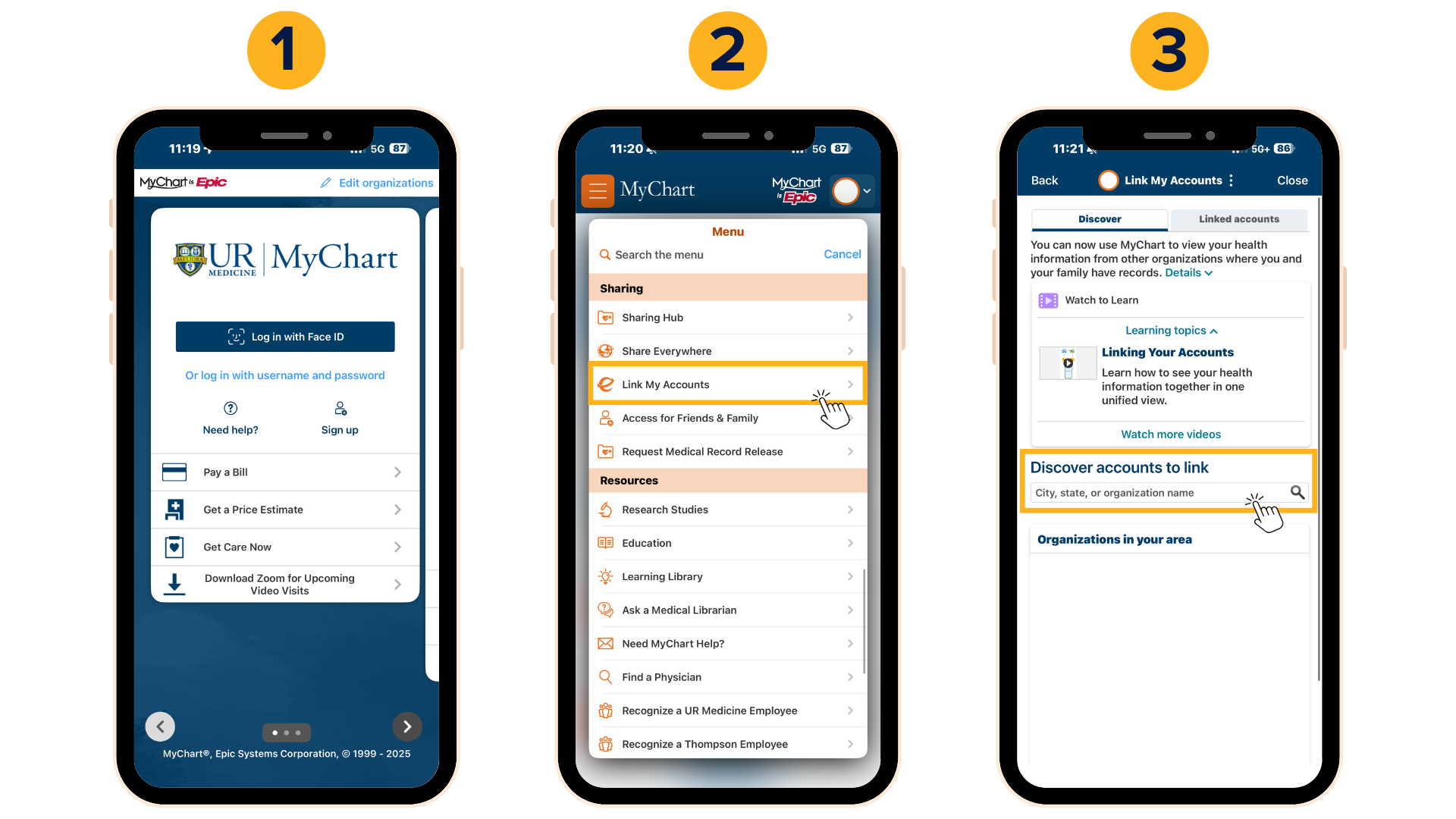
Step 1: Open MyChart
- Log in to your account on a computer or in the MyChart app.
- Make sure you know the login info for your other MyChart account too—you’ll need it in a minute.
Step 2: Go to Account Settings
- Once logged in, click on Menu.
- Scroll down and look for Link My Accounts (sometimes listed under Account Settings).
Step 3: Add Your Other Account
- Choose the health system you want to add (another hospital/health system where you get care).
- Enter your login information for that account.
Step 4: Confirm and Done!
- Once both accounts are linked, you’ll see tabs for each system.
- Click on each tab to toggle between systems—or view them merged into one summary.
Tips for Linking MyChart Accounts
- Make sure your name and date of birth match across both accounts, or linking may not work.
Download the MyChart App for Easy Access
Once accounts are linked, the MyChart app makes it even easier to switch between health systems. Search for “MyChart” in the App Store or Google Play and log in with your linked account.
Source link
Fast food advertising banned in Abu Dhabi
Z Med Clinic Expands Medically Supervised Healthy Living Programs Across Texas
Midnight Sun Complex staff promote healthy living